Export your patient email list from Dentrix (G-series)
Build a custom list of patients with an email address and open it in Excel, then save it as a CSV.
- Dentrix open at a computer in your practice, signed in with a user who can use Letters & Custom Lists.
- Microsoft Excel installed on the same computer. Dentrix opens your list in it.
In the Office Manager, click Letters & Custom Lists.
Screenshot comingChoose a category (Misc. is fine), then click New.
Screenshot comingAt the top of the window, give the list a name, such as "Email list". Next to Letter Template, click Browse and pick any template.
It does not matter which template. We only need the list.
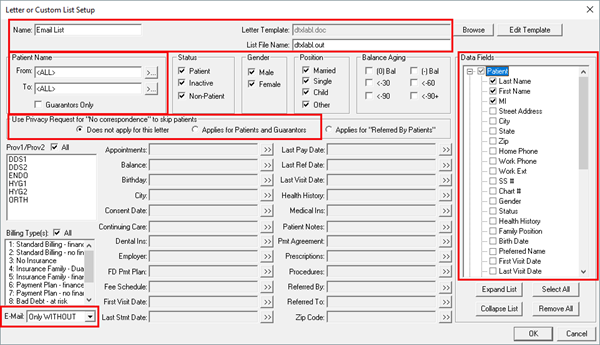
Image: Dentrix Magazine. Temporary until we add our own. Set the filters. Change E-Mail to Only With, so only patients with an email address are included.
A patient must match every filter to be included, so clear any other filters. Leave Guarantors Only unticked to include every patient. By default Dentrix skips patients marked No Correspondence. Leave that as it is, so people who asked not to be contacted stay out.
Screenshot comingIn Data Fields on the right, expand Patient and tick Last Name, First Name and E-Mail.
Screenshot comingClick OK at the bottom of the window.
Screenshot comingWith your new list selected, click Open in Excel.
Dentrix checks all patients and opens Excel with the list. This can take a minute on a large practice.
Screenshot comingIn Excel, click File, Save As, and choose CSV (Comma delimited). Give it a name you will recognise.
Check the first row names your columns, and that one is called Email. If it is not, type the header in. ModularMail looks for a column called Email.
Screenshot coming
A .csv file with one row per patient who has an email address, with their first name, last name and email.
If something looks different
- I cannot find Letters & Custom Lists
- It is in the Office Manager. If your Dentrix looks different, tell us your version and we will update this guide.
- Excel does not open
- Dentrix needs Excel on the same computer. If you do not have it, use the Dentrix Enterprise guide's "Create Data File Only" option if your version has it, or ask Dentrix support for a patient email list.
- The same email appears several times
- Families often share one address. ModularMail removes duplicates when you upload, so you can leave them.